WINDOWS 7 FILE SYSTEM STRUCTURE
Formally, a file system is a way to organize, store and name data at information storage devices. But we can say simpler: it is a format of saving information at various storage devices and, in the first place, at the computer hard disk. Windows 7 utilizes the NTFS file system which is the most commonly used system nowadays.
The core of the NTFS is the MFT (Master File Table). This is a file of a special format that is located on the MFT zone of a partition. This zone is only available to OS service applications and to specialized tools that can address the hard drive directly. The MFT is a table that lists all files with their attributes and security parameters. But that’s not all. The MFT also stores addresses of sectors where file contents are physically stored. This is very important information, without it the operating system simply wouldn’t know where the requested object is, and where it should move the reading head of the hard drive to.
So, we have learned the basics of the file system, so let’s look at Windows 7 itself now. As any other operating system it has several folders that we can call system. By default they are the same for all users of this OS. Some of them are crucial, so you better not touch them, otherwise you may experience system faults. The contents of others may be changed safely.
In other word, after some files are encrypted, such files only can be opened when people use your account to login Windows system.
Supported Volume Size
For FAT32, the partition size is no larger than 2TB, which means you cannot format a hard drive larger than 2TB as a single FAT32 partition. NTFS allows you use 64KB clusters to achieve a 256TB volume. In theory, you can achieve a 16EB volume of exFAT.
Supported File Size
For FAT32, it fails to support the single files whose size is over 4GB, while NTFS file system can support the size of single file more than 4GB, and for exFAT, the maximum size of single file, in theory, is 16EB.
In conclusion, compared with NTFS and exFAT, FAT32 comes in higher compatibility in old operating systems and removable storage devices, whereas its features limit in single file size and partition size.
Compared with FAT32 and exFAT, NTFS surpasses in security. And exFAT features larger volume volume size and single file size.
About Windows File System
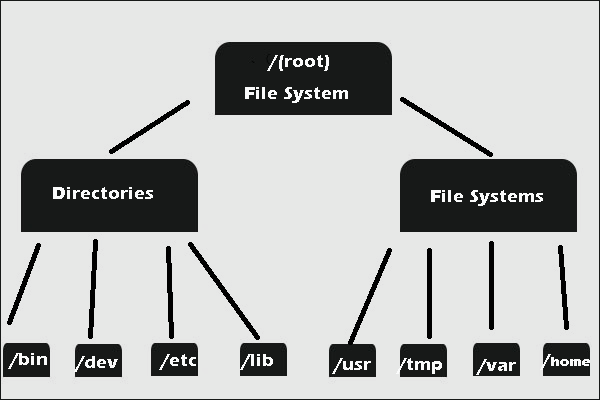
What is file system? Have you ever paid attention to it? This article aims to introduce Windows file system to you.
In computing, file system controls how data is stored and retrieved. In other words, it is the method and data structure that an operating system uses to keep track of files on a disk or partition.
It separates the data we put in computer into pieces and gives each piece a name, so the data is easily isolated and identified.
Without file system, information saved in a storage media would be one large body of data with no way to tell where the information begins and ends.
Types of Windows File System
Knowing what is file system, let’s learn about the types of Windows file system.
There are five types of Windows file system, such as FAT12, FAT16, FAT32, NTFS and exFAT. Most of us like to choose the latter three, and I would like to introduce them respectively for you.
FAT32 in Windows
In order to overcome the limited volume size of FAT16 (its supported maximum volume size is 2GB) Microsoft designed a new version of the file system FAT32, which then becomes the most frequently used version of the FAT (File Allocation Table) file system.
NTFS in Windows
NTFS is the newer drive format. Its full name is New Technology File System. Starting with Windows NT 3.1, it is the default file system of the Windows NT family.
Microsoft has released five versions of NTFS, namely v1.0, v1.1, v1.2, v3.0, and v3.1.
exFAT in Windows
exFAT (Extended File Allocation Table) was designed by Microsoft back in 2006 and was a part of the company's Windows CE 6.0 operating system.
This file system was created to be used on flash drives like USB memory sticks and SD cards, which gives a hint for its precursors: FAT32 and FAT16.
Comparisons among the Three Types of Windows File System
Everything comes in advantages and shortcomings. Comparisons among the three types of Windows File System will be showed in following content to help you make a choice about selecting one type of file system.
Compatibility
The three types can work in all versions of Windows.
For FAT32, it also works in game consoles and particularly anything with a USB port; for exFAT, it requires additional software on Linux; for NTFS, it is read only by default with Mac, and may be read only by default with some Linux distributions.
With respect to the ideal use, FAT32 is used on removable drives like USB and Storage Card; exFAT is used for USB flash drives and other external drivers, especially if you need files of more than 4 GB in size; NTFS can be used for servers.
Security
The files belonging to FAT32 and NTFS can be encrypted, but the flies belong to the latter can be compressed.
